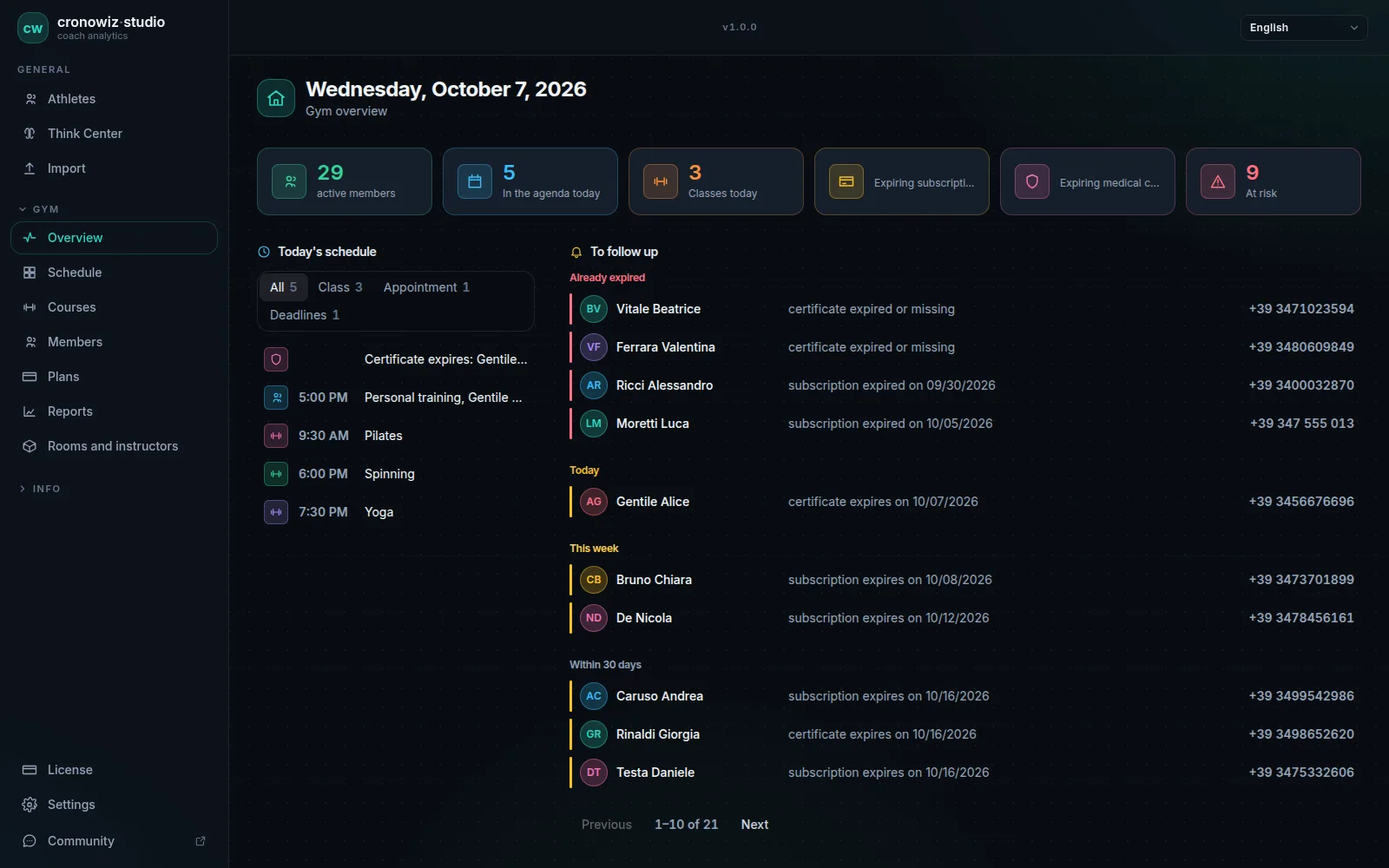
Plenty of gym software “runs on Windows” only in the sense that it opens in a browser that happens to be on Windows. Studio is a real Windows program: a regular installer, an entry in the Start menu, a window of its own and a database in your user folder. It is the same program, with the same features, as the Linux version.
Because it is installed rather than hosted, it is offline gym management software: members, memberships, the class schedule, check-ins and reports work with no connection. The internet is needed to buy the licence, to download updates and to move the licence to another PC.
The price is €199 once, with no subscription. The licence covers one computer and can be moved up to three times; members and athletes are unlimited.
-
A regular installer
run the setup file, and cronowiz Studio appears in the Start menu.
-
Windows 10 and 11, 64-bit
a screen of at least 1024 × 640 and about 100 MB of disk space.
-
Data in your user folder
one local database, with full backup and exact restore from the settings.
-
Signed updates
offered inside the program; any file that does not come from us is refused.
Installing on Windows
Download cronowiz-studio-setup.exe from the download section and open it. Because the program is new to Windows, a blue “Windows protected your PC” window may appear: click More info, then Run anyway. Follow the installer to the end and the program appears in the Start menu as cronowiz Studio.
Studio uses Microsoft’s WebView2 component to draw its window. Windows 11 and an up-to-date Windows 10 already have it; on an older Windows 10 the installer downloads it, so that one step needs a connection. Next to the download there is a SHA-256 checksum, if you want to check the file with certutil before installing.
First launch and activation
At first launch you accept the terms of sale, then buy the licence inside the program: Stripe’s payment page opens in your browser, and within a few seconds of payment the program unlocks by itself, with no code to copy and no restart. From then on it does not need to connect.
With an empty database the program opens the Import page: if you are coming from another computer, drag your backup there. Otherwise set up the gym in this order: plans, rooms and instructors, courses with their weekly times, members, and finally check-in cards. Then take the first backup straight away.

Where your data lives on Windows
Everything is in a single database, studio.db, in %APPDATA%\cronowiz-studio\, that is C:\Users\<your user>\AppData\Roaming\cronowiz-studio\. It is never sent to our servers. Before every major update the program also makes its own safety copy of the database.
For backups use Settings → Full dashboard backup: it produces one .cwbackup file, which you can protect with a passphrase and copy to a USB stick or an external drive. When you uninstall, Windows asks whether to delete the application data too; leave it unticked if you may reinstall.
The entrance tablet and the Windows firewall
If you use a tablet for self check-in, Studio serves it over the gym’s local network. The first time you switch on Tablet at the entrance, Windows asks whether to allow network access for cronowiz Studio: choose Private networks and confirm, or the tablet cannot connect. The rest is explained on the offline check-in system page.
What you need
Older versions of Windows, 32-bit systems and Macs are not supported.
- Windows 10 or 11, 64-bit, on a desktop PC or a laptop
- a screen of at least 1024 × 640 pixels; Full HD is ideal
- about 100 MB of disk space, plus your data, usually a few tens of MB
- an internet connection only to buy the licence, download updates and, on an older Windows 10, install WebView2
Who it is not for
Each computer needs its own licence: the front desk and the office can work on the same data at the same time, with the office PC connected to the front-desk PC as a workstation, which has to stay on. Studio has no member app, no online self-booking and no card payments; if your gym depends on those, a cloud service is the better fit.
Your gym in one program. Your data in your gym.
Windows and Linux · €199 once, no subscription
The questions people usually ask
Does it work on Windows 11?
Yes. cronowiz Studio runs on 64-bit Windows 10 and Windows 11.
Does it work on Windows 7 or 8?
No. It needs 64-bit Windows 10 or 11.
Why does Windows say “Windows protected your PC”?
Because the program is still new to Windows. Click More info, then Run anyway, and the installation continues.
Does it need the internet on Windows?
Only to buy the licence, download updates, move the licence and, on an older Windows 10 without WebView2, during installation. Daily use works offline.
Can I install it on a laptop?
Yes, on any PC or laptop with 64-bit Windows 10 or 11. The licence covers one computer at a time.
How do I move it to a new Windows PC?
Take a full backup on the old PC, transfer the licence from the License page, install Studio on the new PC, activate it with the transfer code and restore the backup. You can move the licence up to three times.