User manual · 2/12
Getting started
On first launch cronowiz Studio asks for three things, once: accept the terms, activate the licence and, if you like, import some data. Then it pays to set up the gym in a particular order, described at the end of this chapter.
1. The terms of sale
The first screen shows the Terms of sale. Read them, tick I have read and accept the terms of sale and press Continue. The same terms are published at cronowiz.com/licenze/termini. If they change in the future, the program will show them again.
2. Buying and activating the licence
- The purchase screen shows the price of the One-time licence and what it includes: it is valid forever on the major version you buy, with all its updates, and can be moved to another computer up to 3 times.
- Press Buy. Your browser opens Stripe's secure payment page.
- Enter your payment details and the email address for the receipt and invoice. Tick the consent to immediate activation.
- Go back to the program: within a few seconds of the payment being confirmed it unlocks by itself. No codes to copy, no restart.
Already have a licence on another computer? On the same screen choose I have a transfer code (see Licence and updates).
3. The first import (optional)
With an empty database the program opens the Import page. If you have a backup to restore, or the .cwbackup file of an athlete who uses the cronowiz app, drag it into the box. Otherwise just click Athletes or any item in the Gym section of the menu: the page will not come back.
How the window is laid out
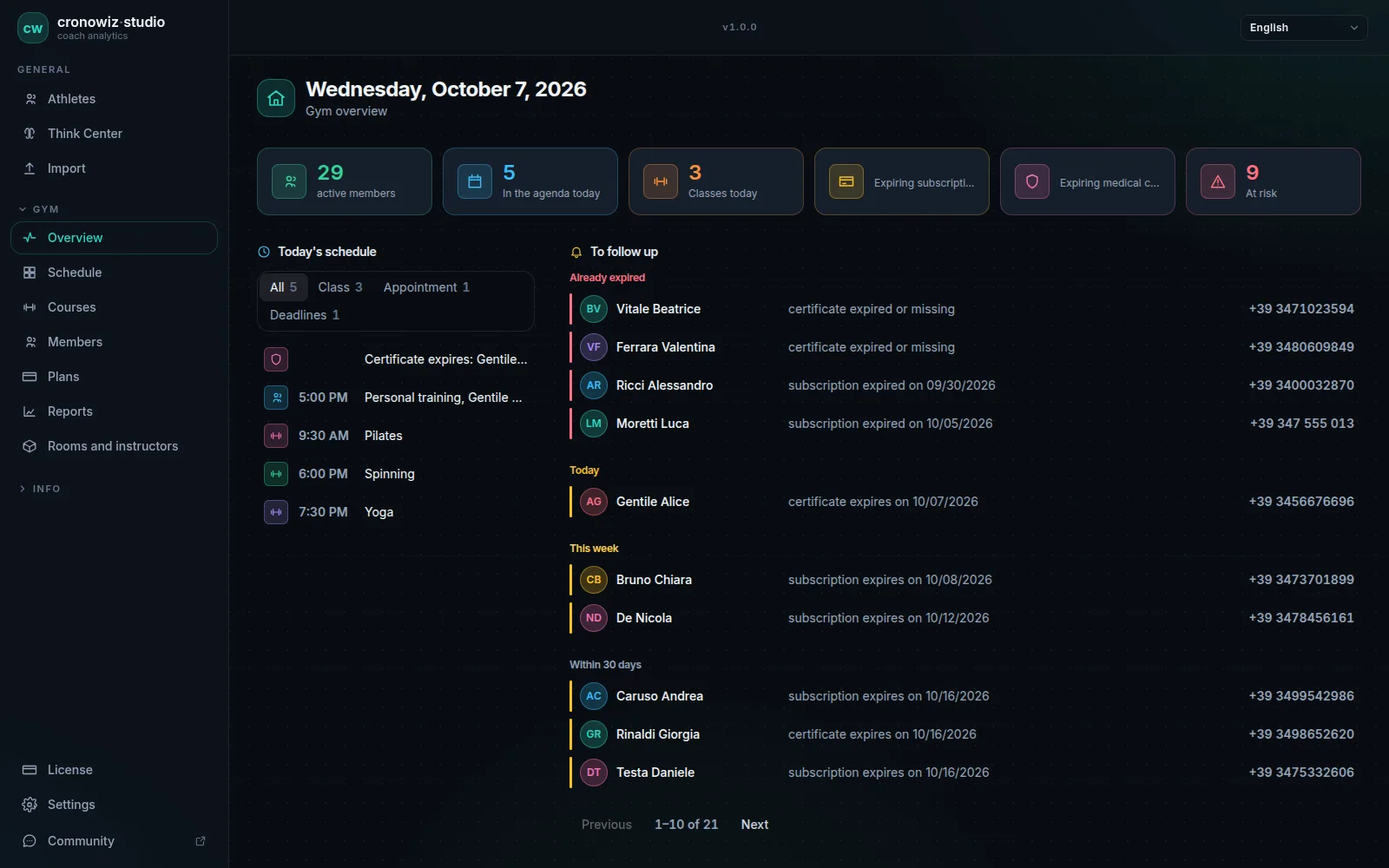
The menu on the left is split into sections, which open and close when you click their title:
| Section | Items |
|---|---|
| General | Athletes · Think Center · Import |
| Gym | Overview · Schedule · Check-in · Courses · Members · Plans · Reports · Rooms and instructors |
| Athletes | One entry per athlete; clicking it opens their pages: Overview, Cardio, Strength, Live, Readiness, Digital Twin, Measurements, Video Analysis, Athlete settings. It appears once there is at least one athlete. |
| Info | Disclaimer · Privacy · The math |
| At the bottom | License · Settings · Community |
At the top you will find the version number and the Language menu. You can drag a .cwbackup file anywhere onto the window: "Drop to import" appears and the program imports it.
Settings to check straight away
Open Settings (at the bottom of the menu) and check:
- Appearance: Dark, Light or Match system theme. Applies immediately.
- Regional formats: currency symbol and its position, decimal and thousands separators, date and time format, first day of the week. Check the Preview and press Save formats. Until you save them, they follow the chosen language. The currency is only a symbol: nothing is converted.
- Language: from the menu at the top right. On first launch it follows your system language.
In what order to set up the gym
Many things depend on others: a course uses a room, a subscription uses a plan. This order saves the most time:
- Plans: create the subscription types you sell (monthly, quarterly, 10-entry pass…) and the joining fee. → Members and subscriptions
- Rooms and instructors: rooms with their capacity, and instructors. → Schedule and classes
- Courses and their weekly times. → Schedule and classes
- Members: add people, sell subscriptions, record medical certificates.
- Check-in: if you want to record who comes in, print or send the QR and PIN cards and, if you have a tablet, connect it. → Check-in and tablet
- Backup: take the first backup right away and make a habit of repeating it. → Backup and new computer